 extraDisp
Guide · updated 16 October 2026
How to use an Android tablet as a second monitor on Windows
Install the extraDisp app on the tablet and the free extraDisp Server on the PC. In the server, click Setup Virtual Display so Windows gets a second 1920 × 1080 screen, choose it in the Monitor list and click Start Server. Then connect the tablet over Wi-Fi by typing the address the server shows, or over USB with USB debugging on. Windows now extends the desktop onto the tablet, and your taps work as mouse clicks.
What you need
| Item | Details |
|---|---|
| Windows PC | Windows 10 version 1809 or later, or Windows 11, 64-bit |
| Android tablet or phone | Android 8.0 or later |
| extraDisp app | $2.99 once on Google Play |
| extraDisp Server | Free, portable ZIP (27.8 MB) |
| For Wi-Fi | PC and tablet on the same network |
| For USB | A data cable, USB debugging on the tablet, and Google's Android SDK Platform-Tools on the PC |
Step 1: Install the Windows server
- Download XDisp-Portable.zip and extract it to a folder you will keep, for example
C:\Tools\XDisp. - Run XDisp.exe. If SmartScreen says "Windows protected your PC", click More info, then Run anyway.
- If Windows Defender Firewall asks, allow access on private networks. The tablet connects to the PC on port 8765, so a blocked firewall stops Wi-Fi mode.
The server window has four parts: Server Settings (port, monitor, quality, FPS), the Start Server and Remote Control buttons, Extend Display (the virtual display buttons) and a Status panel with the address, USB state and connected clients.
Step 2: Give Windows a second display
extraDisp streams one monitor to the tablet. To get an extended desktop, Windows needs a monitor that doesn't exist yet. Without one, the tablet mirrors a screen you already have.
- In the Extend Display box, click Setup Virtual Display.
- The server downloads the latest release of the open-source IddSampleDriver from GitHub and asks for administrator approval to install it. Click Yes.
- When the status reads "Virtual display ready!", a 1920 × 1080 monitor has been added. If it says Windows hasn't detected the driver yet, restart the PC and click Add.
- Open Settings > System > Display. Make sure it says Extend these displays, then drag the new display to the side of your main monitor where the tablet sits.
Prefer hardware? A headless HDMI dummy plug in a free GPU port also gives Windows a second monitor, and extraDisp can stream it the same way.
Step 3: Pick the monitor and start the server
- Click the refresh button next to Monitor, then pick the new display from the list. It shows each monitor's size, such as "Monitor 2 (1920x1080)".
- Set Quality (10 to 100, default 70) and FPS (1 to 60, default 30). The defaults are a good start; you can change both from the tablet later.
- Click Start Server. The status turns to "Server Running" and shows a line like
Listening on: 192.168.1.20:8765. Note that address for Wi-Fi.
Step 4a: Connect over Wi-Fi
- Open extraDisp on the tablet. It shows "Scanning for servers..." and, if it finds a PC under Discovered, connects to the first one by itself.
- If nothing shows up after a few seconds, type the address from the server window into Server address and tap Connect. If you leave out the port, the app adds 8765.
- The desktop of the chosen monitor fills the tablet in landscape. The address is saved under Recent, so next time it is one tap away.
Step 4b: Connect over USB
USB mode uses adb, Android's debugging bridge. You set it up once.
- Install adb on the PC. Download Google's Android SDK Platform-Tools and either add the folder to your PATH or extract it to
%LOCALAPPDATA%\Android\Sdk\platform-tools. extraDisp Server looks in both places. - Turn on USB debugging on the tablet. Open Settings > About tablet and tap Build number seven times to unlock Developer options. Then open Developer options and switch on USB debugging.
- Plug in the cable and tap Allow on the "Allow USB debugging?" prompt. The server's Status panel shows "USB: 1 device(s) connected".
- Click Start Server. The server keeps the tablet awake while plugged in, wakes and swipes the screen, runs
adb reverse tcp:8765 tcp:8765and opens extraDisp connected tolocalhost:8765. You don't touch the tablet.
A screen lock with a PIN, pattern or password still needs you to unlock it once; the swipe only clears a plain swipe lock.
Optional: launch over Wi-Fi with wireless ADB
With the cable still connected, click Enable WiFi ADB. The server switches the tablet's adb to port 5555 and saves its Wi-Fi address. After that you can unplug, start the server and click Connect WiFi: it wakes the tablet and opens extraDisp pointed at the PC's network address.
Step 5: Adjust the picture from the tablet
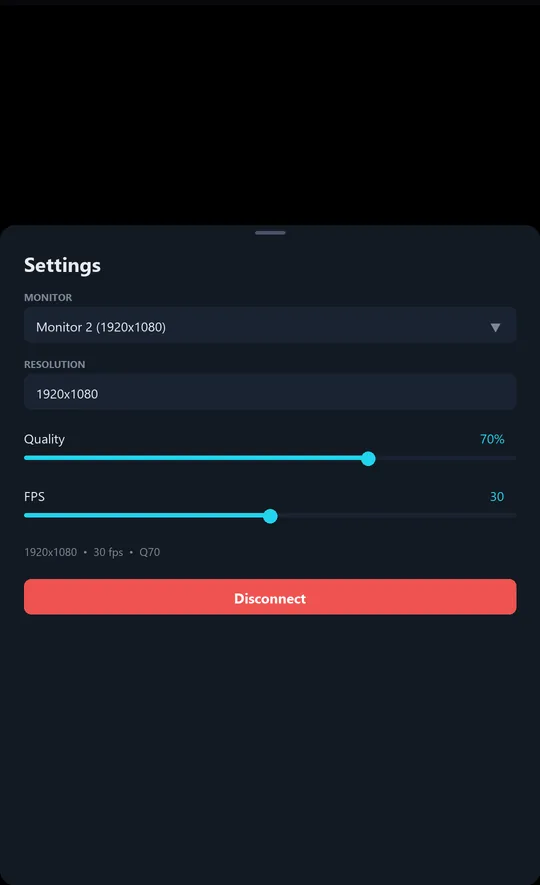
Tap the small gear in the bottom-right corner of the tablet to open the settings sheet.
- Monitor: switch which Windows monitor is streamed.
- Resolution: change the streamed monitor's resolution to any mode it reports. Pick one close to the tablet's shape so it fills the screen.
- Quality: JPEG quality in steps of 10, from 10 to 100.
- FPS: 1 to 60 frames per second.
- Disconnect: stop and go back to the connect screen. The back button asks first.
Touch works as the mouse on that screen: a tap is a left click, a drag is click-and-drag, and a swipe sends mouse-wheel scrolling. There is no on-screen keyboard; type with the PC's keyboard.
Wi-Fi or USB: which should you use?
| Wi-Fi | USB | |
|---|---|---|
| One-time setup | None beyond the firewall prompt | Platform-Tools on the PC, USB debugging on the tablet |
| Each time | Start Server, open the app, connect | Plug in, Start Server |
| Network use | The stream shares your Wi-Fi | The stream stays on the cable |
| Battery | Tablet runs on battery unless charging | Tablet charges from the PC |
| Good at high quality and FPS | With a strong signal | Yes |
Common problems and fixes
The app keeps showing "Scanning for servers..." and never finds my PC
Type the address from the server's Status panel, such as 192.168.1.20:8765, and tap Connect. Check that the server is running, that both devices are on the same network, and that Windows Firewall allows XDisp on private networks.
The server says "USB: No device detected"
The server can't find adb or can't see the tablet. Put Platform-Tools on your PATH or in %LOCALAPPDATA%\Android\Sdk\platform-tools, turn on USB debugging, and use a cable that carries data. If the log says the device is unauthorized, accept the USB debugging prompt on the tablet.
The tablet shows my main screen instead of extending it
The server is streaming your main monitor. Add the virtual display with Setup Virtual Display, set Windows to Extend these displays, then pick the new monitor in the server's Monitor list or in the tablet's settings sheet.
There are black bars around the picture
The streamed monitor and the tablet have different shapes. Open the settings sheet and choose a resolution closer to the tablet's aspect ratio.
The app says "Max reconnection attempts reached"
The app retried 50 times without reaching the server. Start the server again on the PC, then tap Reconnect on the tablet.
The picture is slow or blocky
Lower FPS first, then quality. On Wi-Fi, move closer to the router or switch to USB.
Ready to add a second screen?
The Android app is $2.99 once. The Windows server is free.